Your iPhone shows up in the camera list
In Zoom, Teams, FaceTime and OBS, "RemoteCrab Camera" behaves like any other camera — 1080p at 30fps, hardware encoded, and almost no CPU cost.
- Picked up by every app, no per-app setup
- 1080p 30fps, encoded in hardware with H.264
- Put the phone wherever the shot should be
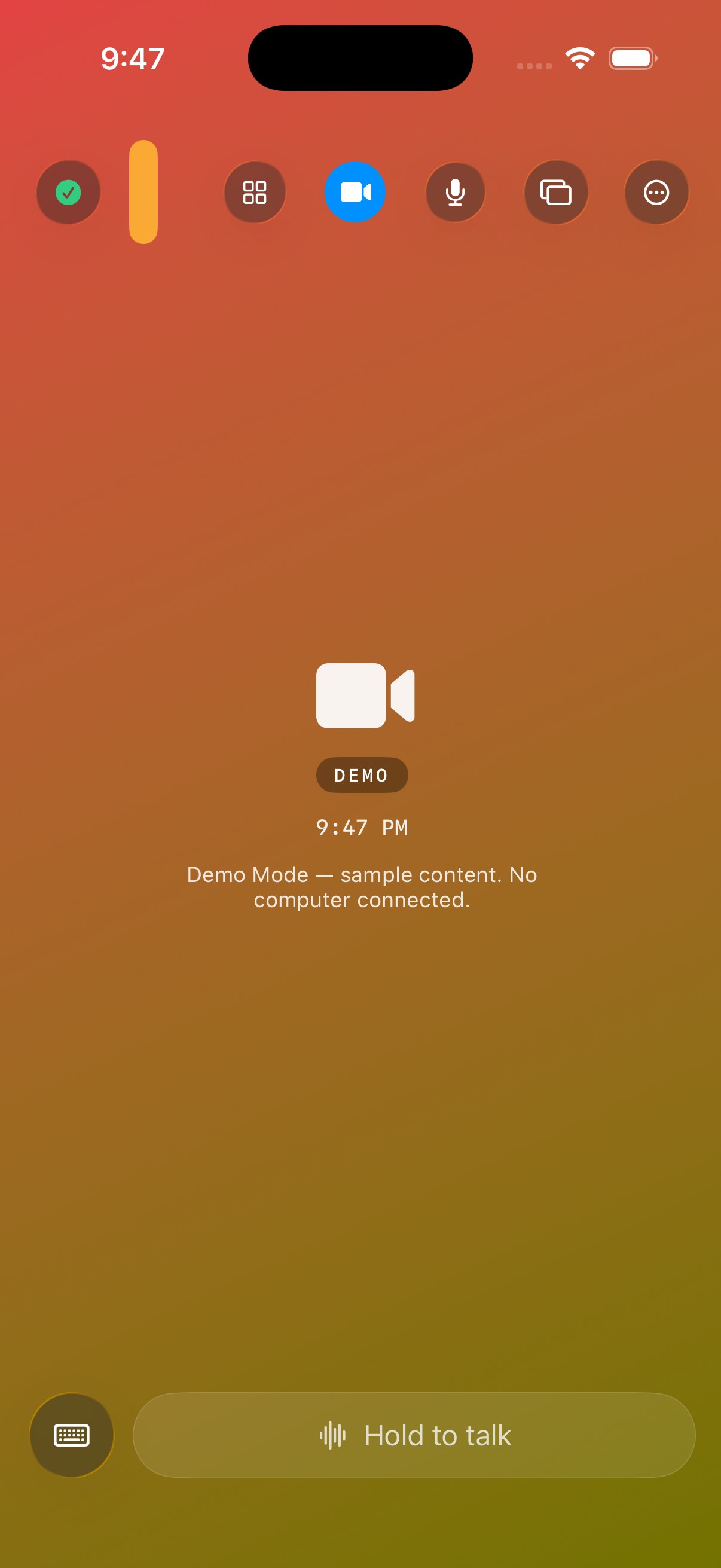
Laptop cameras belong to the previous decade
Most laptop cameras are 720p, turn to mush in low light, and in a meeting room they frame the back of your head. Want a different angle? Then you are plugging in a cable. The camera on the phone in your pocket is usually a generation better — it just is not on the list, because the system has never heard of it.
Connected in two minutes
Install once, then pick it in every app from then on.
- 1
Install and connect
Once your iPhone and computer are connected, turn on the virtual camera from the guided setup.
- 2
Approve the extension
The first time you will be asked to confirm installing the camera extension — one time only.
- 3
Pick it in any app
Open the camera menu in Zoom, Teams or FaceTime and choose "RemoteCrab Camera".
What is actually happening
This is not a screenshot in a disguise — the phone camera is genuinely attached to the system camera interface.
A real system camera
Registered through the macOS camera extension mechanism, so the system, App Store apps and third-party tools all recognise it.
Hardware encoded
The iPhone compresses to H.264 in hardware before sending, so the computer barely does any work.
Front or back, instantly
Flip the camera on the phone and the app on the computer follows right away.
Works as a live input
Add it to OBS as a video capture device and you have a genuine second camera angle.
Low latency
Direct LAN transport plus hardware encode and decode keeps it in the low hundreds of milliseconds — fine for meetings.
Audio only, if you prefer
Turn the picture off and keep just the microphone.
Beyond the meeting
It does not have to be about calls.
- A real second angle — laptop camera for the wide shot, phone on a stand for the close-up.
- Temporary surveillance — stand the phone by the door and watch the room from the computer.
- Whiteboards and documents — phone flat on the desk, far steadier than a laptop camera.
- Recording a class — phone in the corner of the desk, watch it back on the computer.
What you need
- macOS 26 or later on Apple silicon (M-series)
- iOS / iPadOS 26 or later
- Both devices on the same WiFi network
- A one-time confirmation to install the camera extension
macOS shows the standard camera-in-use indicator whenever the lens is live. The camera stops automatically when the phone locks or the app is backgrounded.
Now for the audio side
The same idea applies to microphones: your iPhone becomes a system-wide input device that any meeting or recording app can select.
See the virtual microphone →Plug your phone into your meeting apps
Download the desktop app, approve once, and it will be waiting in the camera list.