Your computer's notifications, on your iPhone
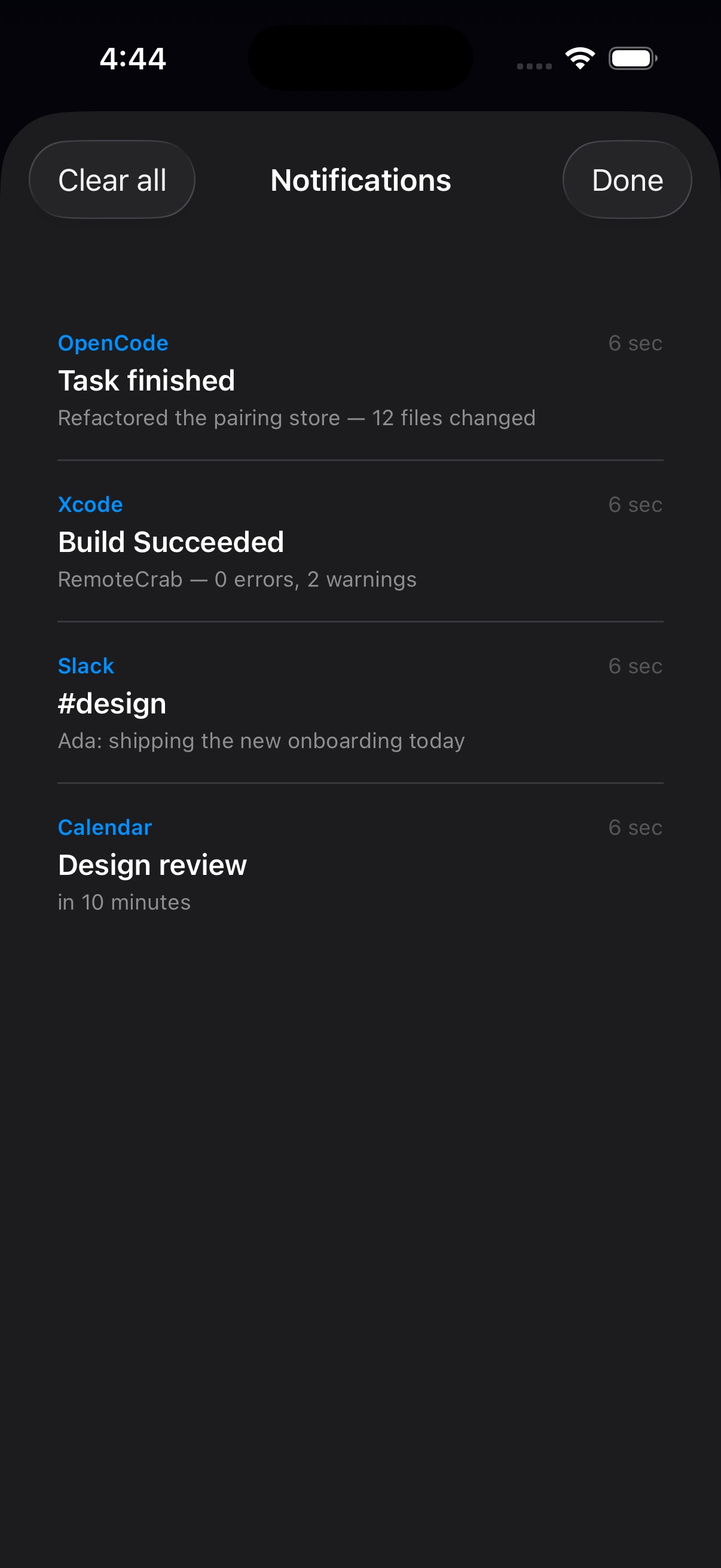
Stop watching the screen. Banners arrive on your iPhone like local notifications — tap one and your computer jumps back to the app and window that sent it.
- Banners relayed to the iPhone in real time
- Tap one to switch your computer to that app — and that window
- Privacy-sensitive apps are excluded by default; the list is yours to edit
“What just popped up on my computer?”
You are waiting on a long task, a build, a reply — so you cannot leave the desk. Walk away and you miss it; come back and you dig through windows. Your phone has a notification centre. Why can’t your computer’s notifications reach it?
Flip one switch
Turn on “Forward notifications to iPhone” in the computer app’s preferences and it is fully automatic.
- 1
Turn it on
Computer app → Preferences → Notifications → “Forward notifications to iPhone”.
- 2
Work as usual
Banners that appear on the computer also appear on the iPhone and land in the in-app inbox.
- 3
Tap to go back
Tap the notification and the computer switches to that app — and un-minimises and raises the window it was showing.
How it works
Built on the system notification banners: live, and out of your way.
Relayed live
A banner that appears on the computer shows up on the phone at the same moment — not polled, not batched.
It lands on the window, not just the app
Tapping activates the sending app and brings the window it was showing to the front. If you already quit that app, nothing happens — no surprise launches.
Private apps are excluded by default
Messages, Mail, WeChat, 1Password and similar are not forwarded unless you add them. Edit the list in Preferences.
Banners only
Notifications suppressed by Do Not Disturb / Focus are not captured — the relay matches what you actually saw.
Nothing leaves your network
Notification text travels only over your own WiFi; there is no server in the path.
An inbox in the app
Missed one? Every relayed notification is in the app’s list, and tapping a row does the same jump.
When it shines
Especially “I am waiting on a background task”.
- Waiting on an agent or a build: the finished-task banner reaches your phone; one tap puts you back in that window for the next instruction.
- Away from the desk: meetings, kitchen, sofa — nothing important slips by.
- Less walking: your phone is already in your hand.
- Fewer interruptions: notifications collect on the phone while the computer screen stays clean.
What it needs
- macOS 26 or later on Apple silicon
- iOS / iPadOS 26 or later
- Both devices on the same WiFi
- Accessibility permission on the computer (it reads the banners)
Notification text travels only between your own devices — never through a server. Turn the switch off and it stops.
Notifications follow you — and you can drive the computer too
The relay means you never have to walk back just to see a result; the app switcher brings that app to the front from your phone.
See the app switcher →Let notifications find you
Download the computer app, turn on forwarding, and leave the phone on the desk.