The computer’s sound, played out of your phone
Not calls — everything: the show in a browser tab, music, the meeting audio only you were meant to hear — streamed to the iPhone in your hand. No codec latency, no compression smear.
- Every sound your computer plays streams to the phone
- Raw PCM straight through — zero codec delay
- Mic and speaker are two independent toggles
The sound only you can hear keeps you tethered
Wear headphones to watch a show and stepping away for water means missing it. Play it out loud and you are disturbing everyone. The iPhone is the closest speaker to you — why is the computer’s audio not on it?
One toggle
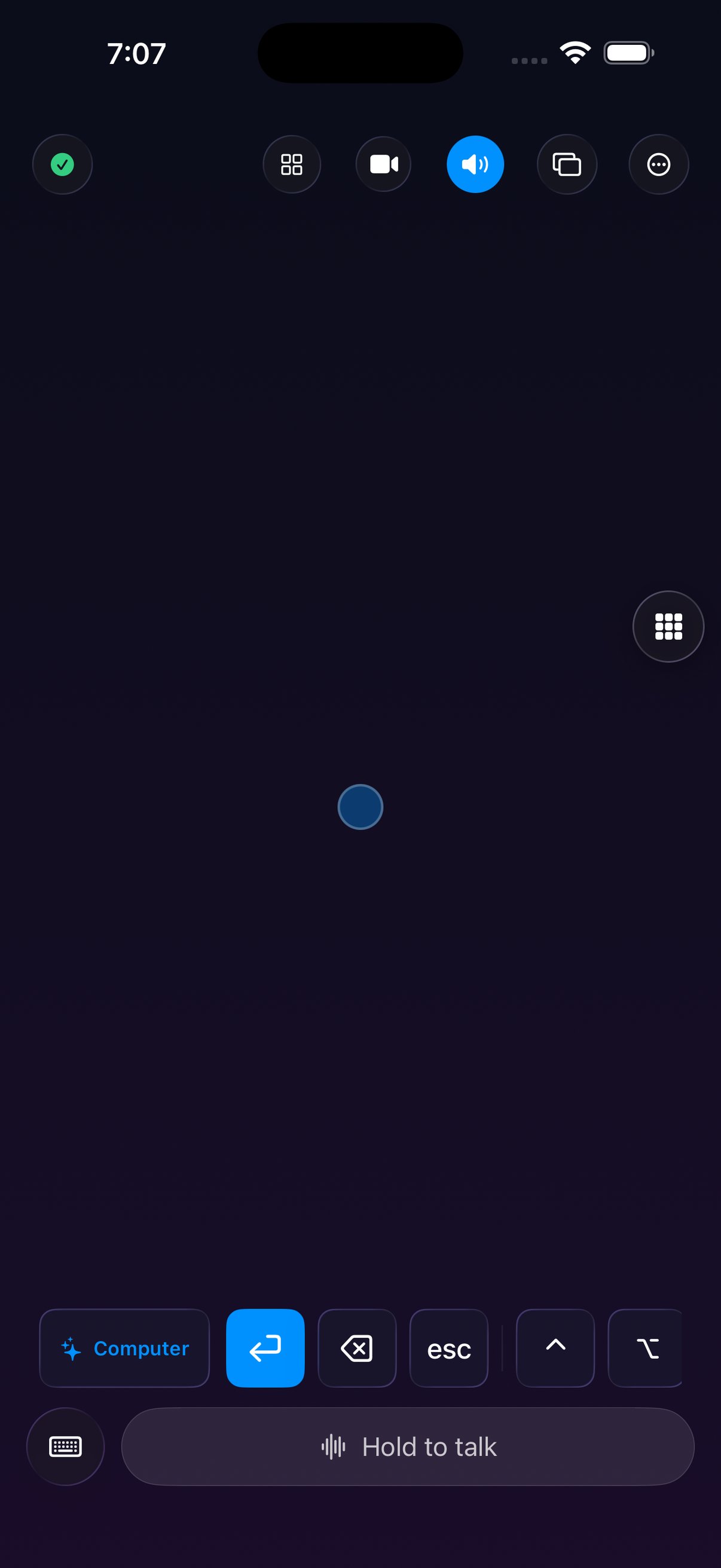
Open the mic/speaker menu on the phone and switch on Speaker — the computer’s audio moves over instantly.
- 1
Turn Speaker on
Tap the mic button in the toolbar and tick Speaker from the drop-down menu.
- 2
The computer plays as normal
Whatever plays on the computer sounds on the phone — players, browsers, meetings, any app.
- 3
Switch back anytime
Untick Speaker and the sound returns to the computer. The two toggles never disturb each other.
Why it stays steady and clean
Capture, transport and playback each had something engineered.
System-wide capture
It taps the audio the computer is actually playing — every app, no per-app setup.
Raw PCM transport
No encode or decode in the path — what is captured is what plays, with no codec delay and none of the compressed mush.
Steady playback clock
The player is fed at the rate the data actually arrives, so the queue depth stays within a couple of packets — it never drifts more out of sync as you listen.
No dropped packets
Measured on hardware: queue depth 0–3 packets, zero drops — playback trails arrival by only tens of milliseconds.
Independent of the microphone
A meeting and a show are two scenes: both toggles can be on at once, and switching one off leaves the other alone.
One-tap switching
Toggle it on the phone and it is done — nothing to click on the computer.
Where it shines
Anytime the sound is on the computer but you are not.
- Lunch-break listening — the phone becomes the speaker sitting right where you are.
- Shows without headphones — route the computer’s audio to the phone and listen from the couch.
- A minute before the meeting — switch to speaker mode and check your playback content before you start.
- When the computer is far away — the sound has to come from it, and your phone is the nearest speaker you have.
What you need
- macOS 26 or later on Apple silicon (M-series)
- iOS / iPadOS 26 or later
- Both devices on the same WiFi network
- Screen Recording permission on the computer (to capture system audio)
It is "hear the computer" — the phone plays what the computer plays, not your phone’s own music on a bigger speaker.
Or the other way round — be heard
Speaker mode is "the computer’s audio on the phone"; the virtual microphone is "the phone as the computer’s mic" — install the driver once and every meeting app can pick it.
See the virtual microphone →Put the computer’s audio in your pocket
Download both apps, switch on Speaker, and whatever plays on the computer sounds on your phone.