A remote that knows what you are using
When the frontmost app on the computer changes, the buttons on your phone change with it. Presentation controls while presenting, terminal shortcuts while in the editor, mic and mute during a call.
- Seventeen button sets, switched automatically by frontmost app
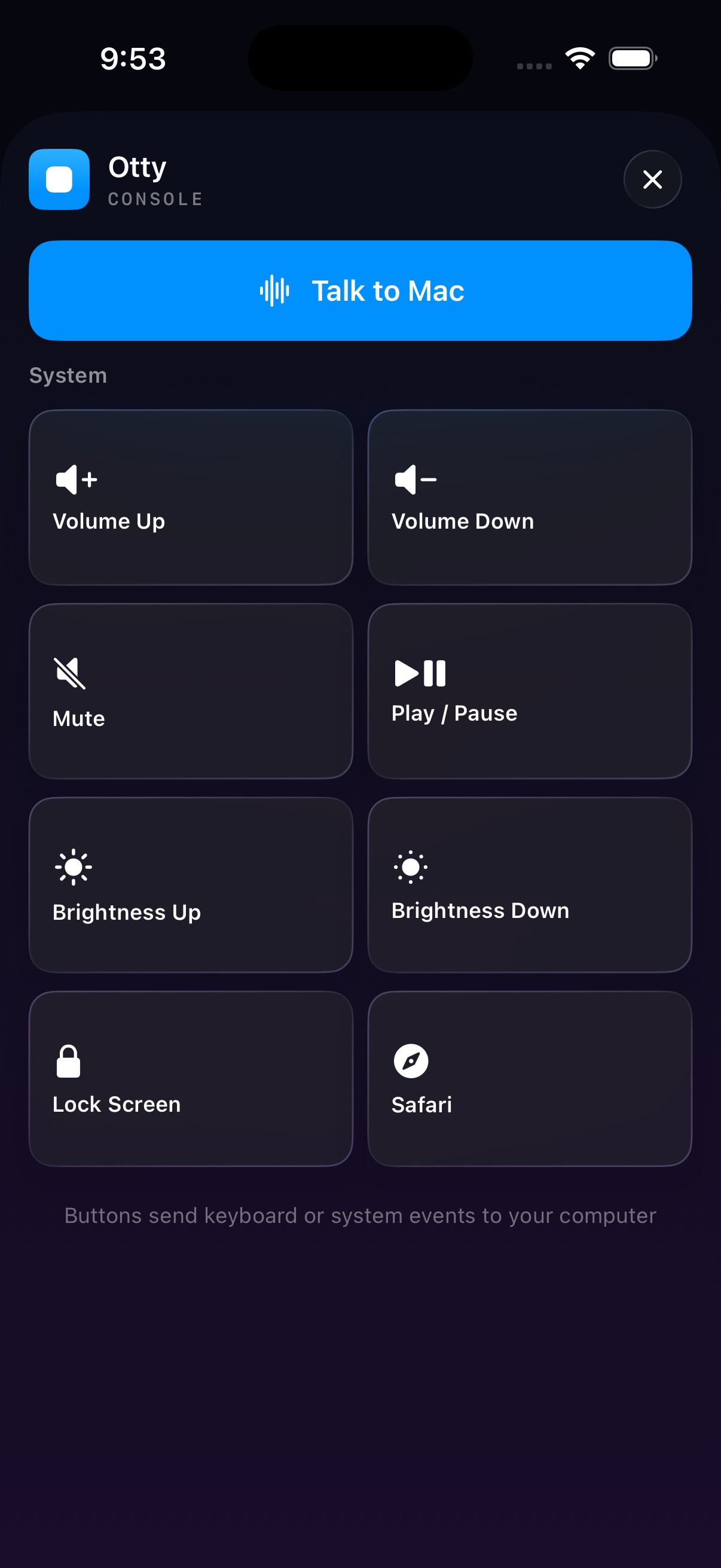
- Volume, brightness, media keys and lock screen in one tap
- Can also launch apps on the computer
No single remote has the right button
"Next" advances a slide in Keynote, advances a page in a PDF and scrolls in a browser. "Hide" clears the terminal on one screen and switches windows in another. Building a remote is the easy part — knowing which software you are in is the hard part.
It switches by itself
You never pick a set manually; the buttons follow whatever you are using on the computer.
- 1
Tap the modes button
The small button on the left of the phone opens the set for the current app.
- 2
See what is on offer
Related controls are paired — volume down sits next to volume up, for instance.
- 3
Change app, change set
Switch apps on the computer and the phone follows automatically.
What is included
Seventeen sets covering the software you actually use.
Presentations
Keynote and PowerPoint: advance slides, presenter view, laser pointer, and talking points.
Developer and terminal
Terminals, editors and AI coding tools: common commands, new tabs, toggle panels.
Meetings and calls
Mute the mic, hang up, flip the camera, raise a hand.
Media
Play, pause, skip, and the volume controls alongside.
Documents and writing
Find and replace, undo, change formatting, save.
Mail and messages
Send, compose, mark as read.
System control
Volume up and down, mute, screen brightness, lock screen, show desktop.
A sensible fallback
Anything not in the list falls back to a general-purpose button set.
Honestly, the system row is the useful part
That is what most people come for.
- Mute — the single most-pressed button in any meeting, given its own spot.
- Lock the screen — lock the phone and the computer together when you walk away.
- Show desktop — put every window away in one tap, same as the system shortcut.
- Brightness — dim the screen when projecting, especially when showing someone else their screen.
- Brightness and volume are paired — same left-right direction, so you stop pressing the wrong one.
What you need
- macOS 26 or later on Apple silicon (M-series)
- iOS / iPadOS 26 or later
- Both devices on the same WiFi network
- Accessibility permission on the computer
System controls (volume, brightness, lock) are sent as system-defined events, which read and change no system settings.
Start with the most fundamental one
However much you use the modes, start with the core: how the phone becomes a trackpad.
See trackpad →Use the phone as a remote
Download the desktop app, connect the phone, and open the context modes.