Turn your phone into a full keyboard
It calls the system input method directly, so pinyin, traditional Chinese, emoji and dictation all work. Text lands at the computer cursor, and ⌘C / ⌘V / ⌘Z behave exactly as they should.
- A system input method, not a keyboard drawn by an app
- Chinese, dictation and emoji all work
- A row of common shortcuts and a mini trackpad built in
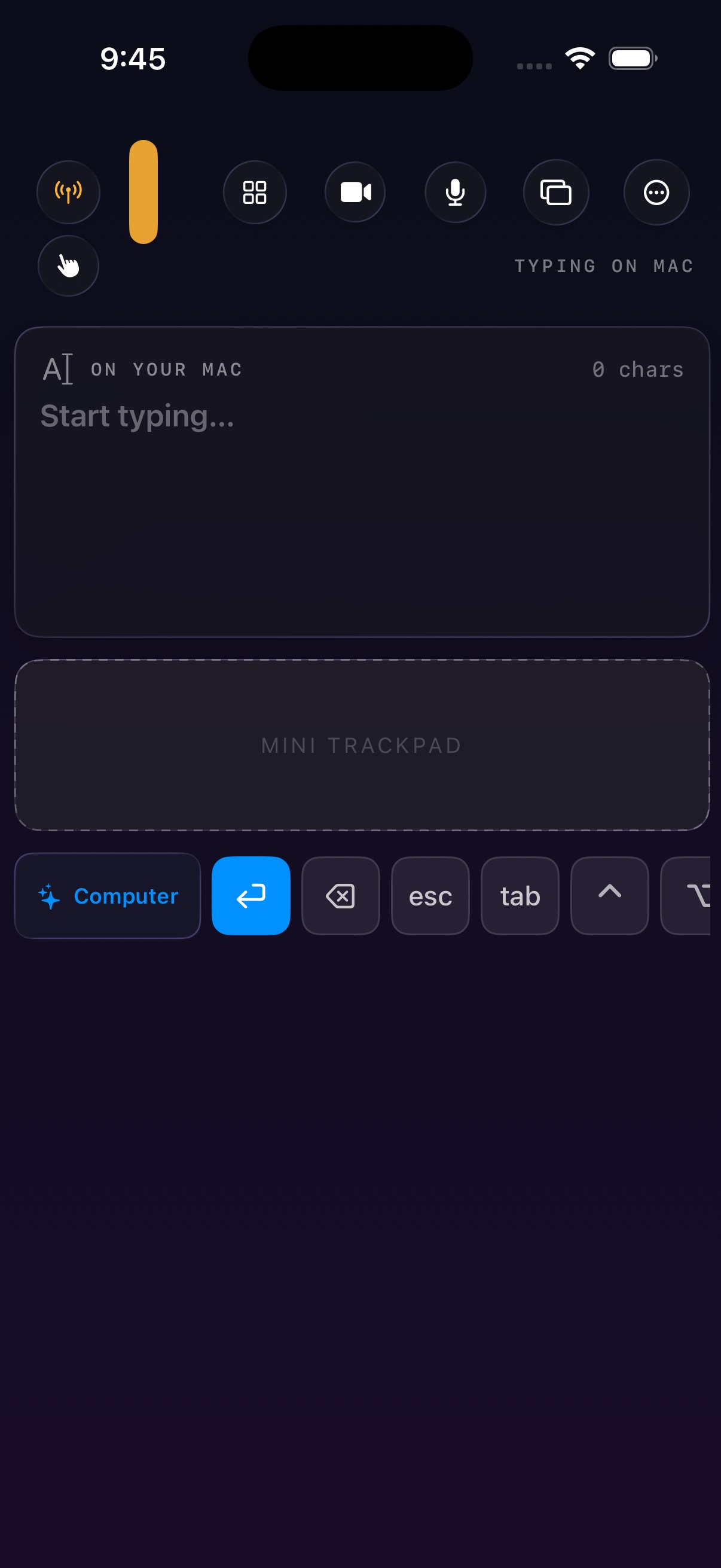
Being able to type Chinese is the baseline
A lot of remote keyboard solutions only manage English — letters come out, and then you cannot type anything else. A remote input that is genuinely useful should just be the system keyboard: whatever you can type on the phone, you can type on the computer.
One tap brings up the system keyboard
Switch to keyboard mode and tap the field — the system keyboard appears by itself.
- 1
Open keyboard mode
Tap the keyboard button at the bottom of the iPhone.
- 2
Tap the input field
The system input method appears automatically, exactly as it does on the phone.
- 3
Just type
Text appears live at the cursor position on the computer.
It is more than typing
The common operations are built into the interface so you do not have to remember shortcuts.
The system input method
Pinyin, candidate words, traditional Chinese, emoji, symbols and system dictation — all native.
Shortcut bar
⌘C, ⌘V, ⌘Z, ⌘⇥ and friends, one tap away.
Modifiers
⌘ ⌥ ⌃ ⇧ can be latched, and typed text then carries those modifiers to the computer.
Mini trackpad
There is one in the keyboard view, so you can move the cursor without switching surfaces.
Rewrite a selection
Select text and turn it all caps, strip the extra spaces, or make it a list.
No stray corrections
Input is reconciled at the tail, so you never get the unnerving effect of text you already typed being deleted.
Combinations worth learning
Stacking these is where the speed-up really is.
- ⌘⇥ — switch apps on the computer without going near it.
- ⌘⌥I — quick forward delete, much faster than repeated backspace.
- Hold to talk plus keyboard — dictate a long Chinese paragraph, then type the few missing words.
- Select and rewrite — pull a paragraph onto the phone, uppercase it or turn it into a list, then paste it back.
What you need
- macOS 26 or later on Apple silicon (M-series)
- iOS / iPadOS 26 or later
- Both devices on the same WiFi network
- Accessibility permission on the computer, used to send key events
Speech recognition runs on the phone. Audio is never uploaded anywhere.
Do not type it, say it
Hold the button and on-device recognition turns it into text — long sentences, pauses and mixed Chinese and English all fine.
See hold to talk →Try typing some Chinese
Download the desktop app, connect the phone, and tap into a field.