A wireless trackpad that actually feels right
Not a finger pretending to be a mouse. It behaves like a real trackpad: relative movement, an acceleration curve, a drag clutch, multi-finger gestures, modifiers, and an on-screen dot that springs back to centre when you lift off.
- Drag, scroll, right-click, pinch, rotate — all of it
- Long-press drag and a clutch, so big selections are not capped by screen size
- Gestures and modifiers both come with haptics
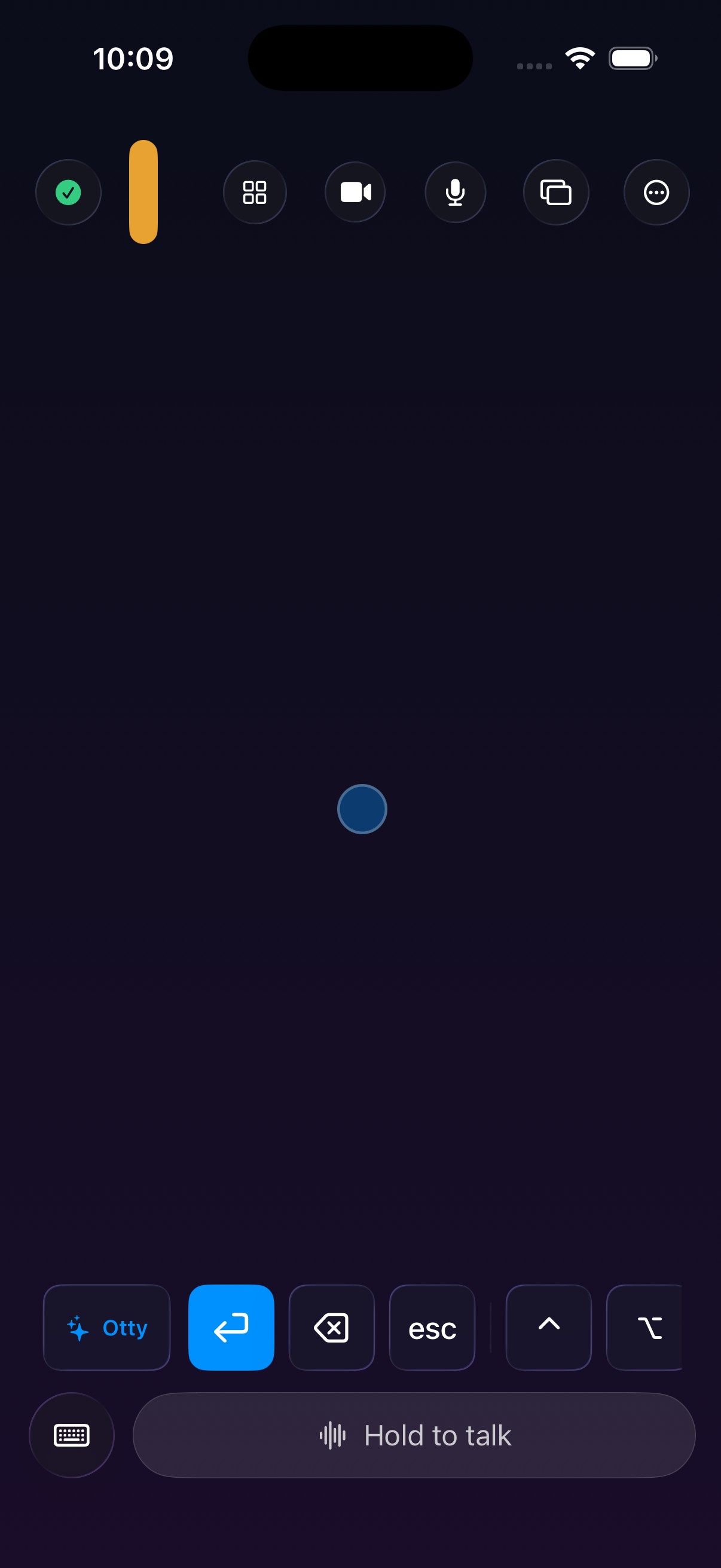
The reason phone trackpads drift
A lot of wireless trackpads map finger displacement straight to mouse movement, so the moment you lift your finger the cursor is stranded somewhere odd and you have to find it again. What you actually want is simpler: wherever you press, the cursor should be there.
Switch to trackpad and go
Once connected, tap the trackpad icon in the toolbar.
- 1
Connect
Both devices on the same WiFi, paired automatically.
- 2
Open the trackpad
Tap the trackpad button on the iPhone.
- 3
Use it like a real trackpad
Move, drag, scroll, right-click and multi-finger gestures are all in the modifier bar below.
The small things that make it good
These are the line between works and works well.
Relative, not absolute
The cursor never jumps because of where your finger happens to be — it moves, with acceleration.
Fast flicks accelerate
Slow drags stay precise; quick swipes travel far. The same curve a real trackpad uses.
Drag clutch
Need to reposition mid-drag? Keep the button held and put one finger back down within 0.8 seconds and the drag continues — no restart.
Long-press to drag
Hold for 0.45 seconds to start dragging, rather than hunting for a double-tap.
Two-finger scroll and right-click
Two fingers up and down scrolls; a two-finger tap opens the context menu.
Three- and four-finger gestures
Three fingers switch apps, four switch Spaces — matching the system defaults.
Lockable modifiers
⌘⌥⌃⇧ can each be latched, so selecting a long passage does not need a second hand.
Three habits that make it better
- Use long-press to drag — forget the double-tap timing, it is far more reliable.
- Tap once mid-swipe — it brakes immediately instead of registering as a click.
- Latch ⌘ then drag — selects a large block in one go, or ⇧-click to extend a selection.
What you need
- macOS 26 or later on Apple silicon (M-series)
- iOS / iPadOS 26 or later
- Both devices on the same WiFi network
- Accessibility permission on the computer, used to send pointer and key events
Every permission can be revoked in System Settings, and the trackpad stops sending events immediately when you do.
Need to type a lot?
The same gestures in keyboard mode make a full input device — system IME and dictation included.
See keyboard →Try the drag clutch
Download the desktop app, turn the phone into a trackpad, and try selecting a long passage of text.