Send photos, files and clipboard straight to the computer
AirDrop-style transfer straight into Downloads, with Finder highlighting it for you — and the clipboard syncs in both directions.
- Photos and files land in a Downloads folder automatically
- Select and send several at once
- Clipboard syncs both ways — copy here, paste there
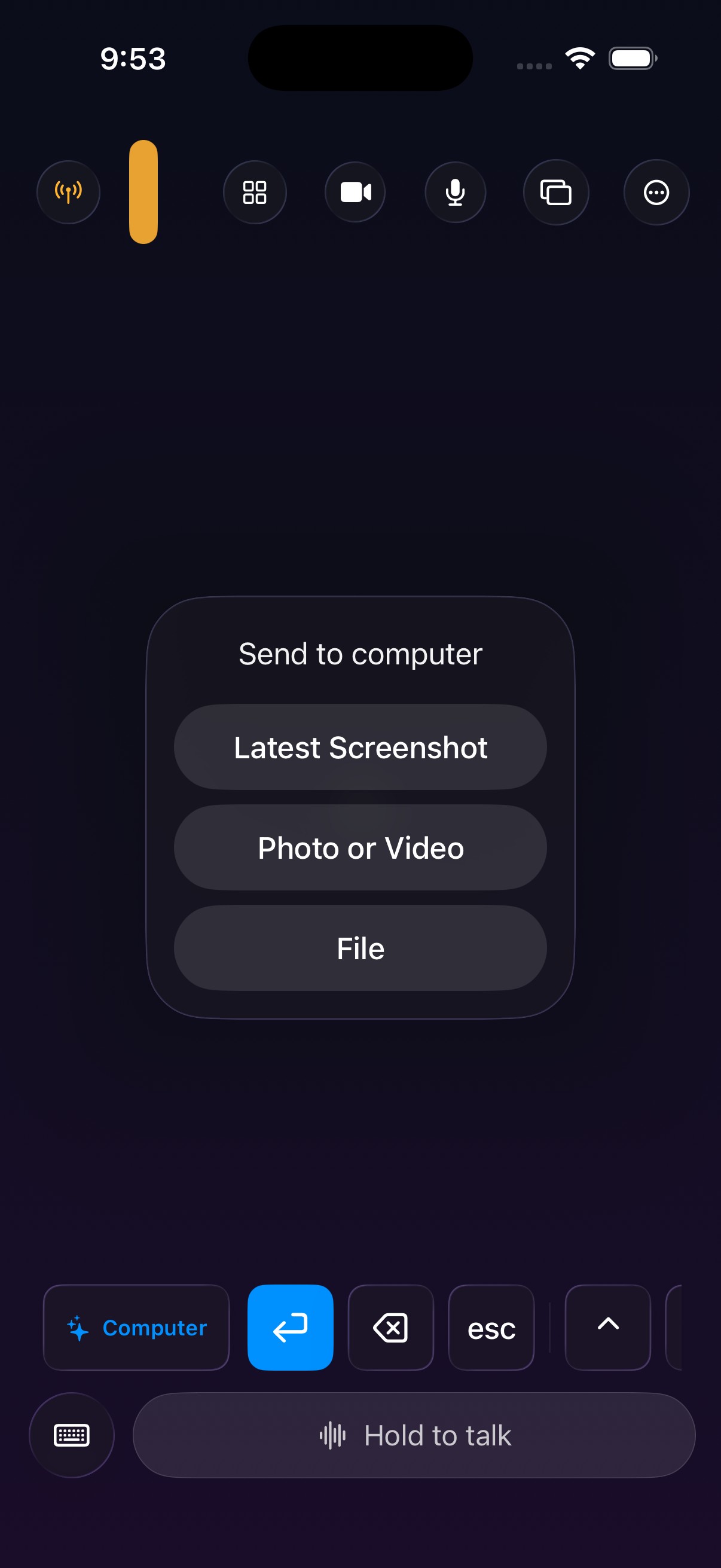
Getting things between phone and computer is always the worst part
Messaging apps, email, cloud drives, AirDrop — each with its own logic. To get a photo you just took onto the computer you select it, compress it, upload it, download it, and then drag it somewhere sensible. The clipboard is worse: anything you copied on the phone has to be retyped by hand on the computer.
Sending files
Like AirDrop: select, send, done.
- 1
Tap send
Pick photos or files in the toolbar — multiple selections are fine.
- 2
Wait a moment on the computer
Files land in a RemoteCrab folder under Downloads, and Finder opens with them selected.
- 3
Done
Multiple files are sent in order and never interleave.
The details
Filed automatically
They go into a RemoteCrab subfolder under Downloads, not scattered across the disk.
Revealed in Finder
Send a batch and Finder opens once, not a dozen times.
Multi-select
Pick thirty photos and they transfer one after another.
Send your latest screenshot
Straight from the share sheet, without saving to Photos first.
Clipboard both ways
Copy on the phone and paste on the computer; and the other direction works too.
Rewrite the text
Take a selection and make it all caps, trim it, or turn it into a list before pasting it back.
Ways it saves time
- Screenshot, straight over — no detour through the photo library.
- Writing on one device, typing on the other — copy on the phone, paste on the computer.
- Bulk importing photos — select dozens and let them land in one go.
- Moving a URL — send the link from the phone instead of typing it out.
What you need
- macOS 26 or later on Apple silicon (M-series)
- iOS / iPadOS 26 or later
- Both devices on the same WiFi network
- Photos permission when picking from the library
Files travel directly between the two devices. Nothing is uploaded to a server.
Beyond files, you can just talk
Hold to talk turns speech into text, which beats typing for anything long.
See hold to talk →Try sending a photo
Download the desktop app, connect the phone and send a photo across.